
On the Enterprise plan, one account covers your whole team — and roles control what each member can see and do. Admins invite users and assign roles from the User Management section of Flight Hub. Other plans are single-user, so this article applies to Enterprise only.
Inviting a team member
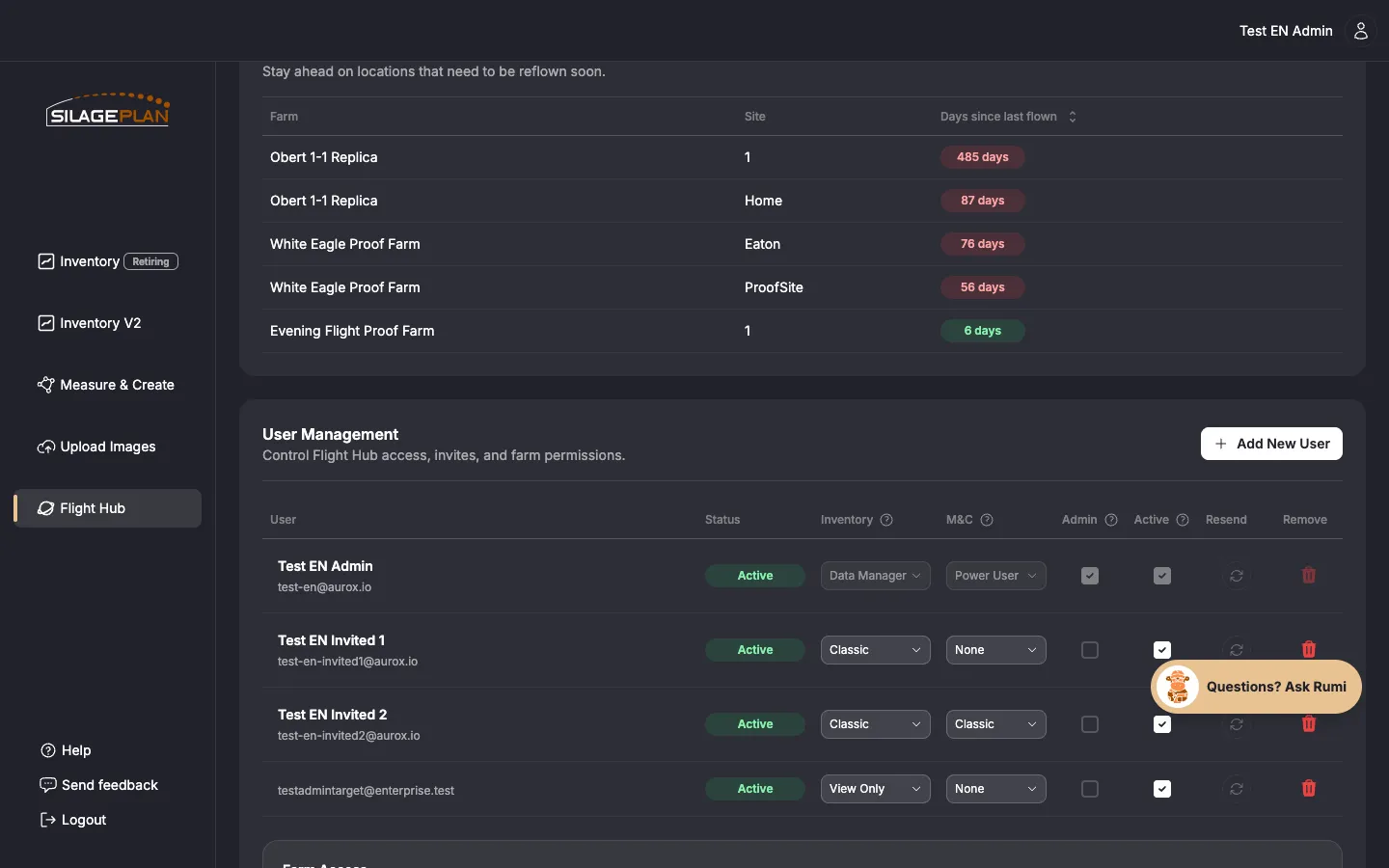
- Open Flight Hub from the sidebar (admins only).
- In User Management, choose Invite new user.
- Enter their email address (name is optional) and choose their roles.
- Click Send Invite.
The member appears with the status Invite Pending until they accept the emailed invitation, then shows Invite Accepted. You can resend the invite email if it was missed. After inviting, set which farms they can access in the Farm Access section.
The role tiers
Each member gets an Inventory role, optionally a Measure & Create (M&C) role, and optionally admin access. An M&C role requires an inventory role first.
Inventory roles
- View Only — upload images and view inventory data. Cannot create, edit, or delete records.
- View Only (No Upload) — view inventory data. Cannot upload images, or create, edit, or delete records.
- Classic — everything in View Only, plus edit existing records. Cannot create or delete records.
- Classic (No Upload) — view inventory data and edit existing records. Cannot upload images, or create or delete records.
- Data Manager — full control of records, farms, sites, and flights: create, edit, delete, and upload.
The “No Upload” variants are for team members who should never see the Upload page; for billing they count as a View Only or Classic seat respectively.
Measure & Create roles
- Classic — standard M&C tools on 3D models: measure, label, and create objects. See the Measure & Create overview.
- Power User — Classic plus 2.5D map features: address search and additional tools on satellite imagery.
Flight Hub Admin
Admin access grants Flight Hub itself — team management, user invitations, farm access control, and role assignment. Grant it only to fully trusted users: an admin can manage every team member and their permissions.
Suggested assignments
- Nutritionist reviewing client data → Inventory View Only, scoped to their client farms.
- Feeder/manager maintaining records → Inventory Classic, plus M&C Classic if they use the 3D models.
- Operations lead running the data → Inventory Data Manager, M&C Power User.
- Account owner → Data Manager + admin.
How role changes behave
- Roles control which pages appear in a member’s sidebar and which actions are available to them.
- Role changes apply the next time the member’s app refreshes its permissions — if a change doesn’t appear, have them log out and back in.
- Deactivating a user (unchecking their active status) blocks login without deleting the account; active users count toward your usage metrics and monthly invoice (see Managing billing and payments).
Questions about roles
If you are unsure how to structure roles for your operation — or a member can’t see something they should — contact support at [email protected] and the team will help you set it up.