
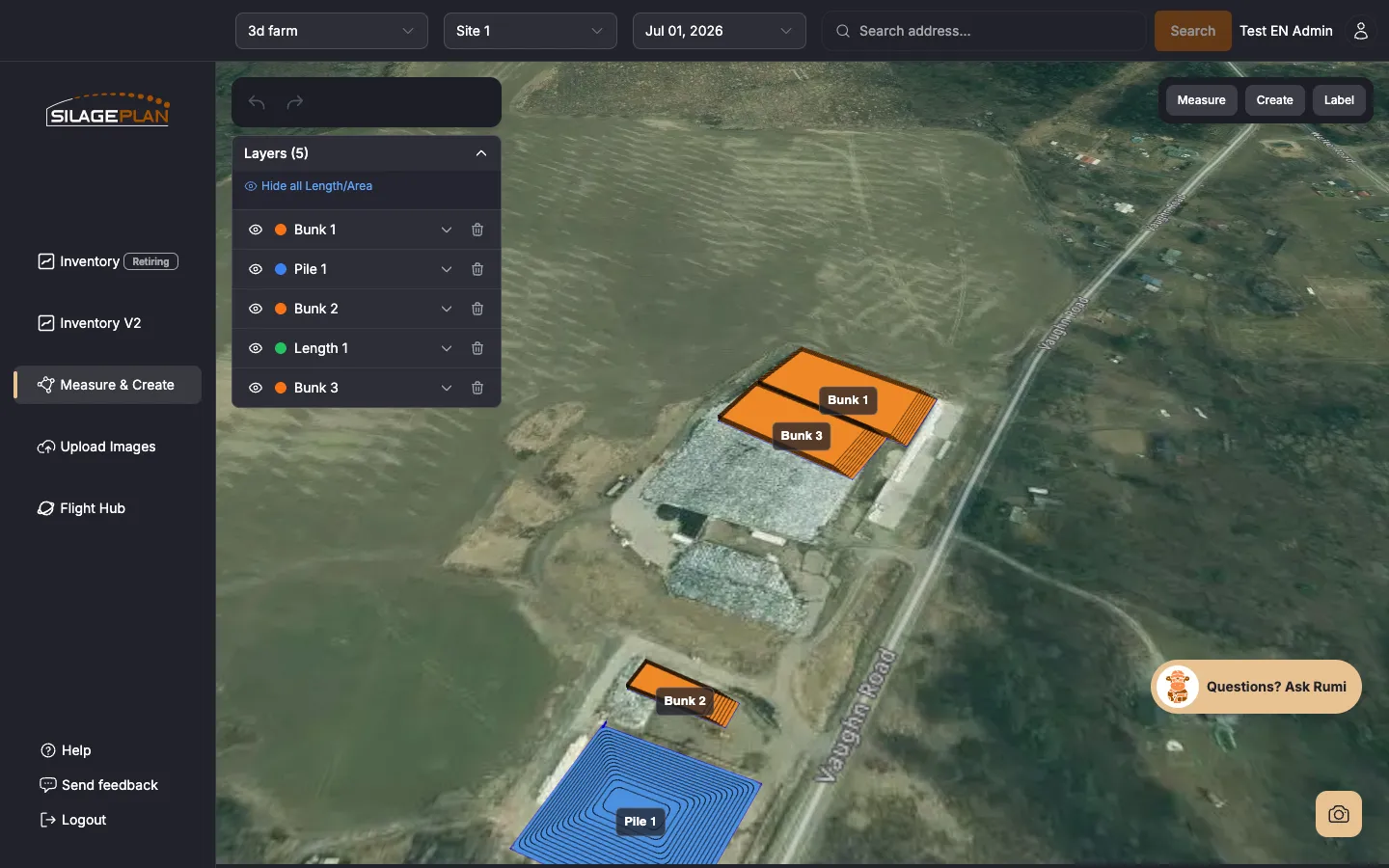
Measure & Create is where you explore interactive 3D models of your silage storage — bunkers, piles, and bags — built from your drone flights. Open it from the Measure & Create item in the sidebar.
Where the 3D models come from
After you upload a drone flight (see How to upload a flight), the Aurox operations team processes your imagery into measurements and a textured 3D model of each storage structure. Once processing finishes, the model appears in Measure & Create for that farm, site, and flight date. Processing is not instant — see Processing times for what to expect.
Opening a model
- Open Measure & Create from the sidebar.
- Select your farm and site in the Select Farm / Select Site dropdowns.
- Select the flight date in the Select Date dropdown.
- The 3D model loads in the viewer. If you see No 3D models available, that flight does not have a model yet — either it is still processing or a model was not part of that upload.
Navigating the 3D viewer
- Rotate — click (or touch) and drag to orbit around the pile.
- Zoom — scroll or pinch to move closer or further away.
- Pan — drag with the secondary mouse button (or two fingers) to slide the view.
Because the model is built from real imagery, you can visually inspect the face of the pile, check cover condition, and compare how a structure changes from flight to flight by switching flight dates.
What you can do here
- Take your own measurements — the Measure menu offers Length, Face Area, and Volume & Tons tools directly on the model. See Measuring volumes on a 3D model.
- Create and label your own objects — mark bunks and piles so they show up in your inventory. See Creating custom measurements and locations.
- Cross-check your inventory — the measured volumes behind your records on the Inventory page come from the same flights you are looking at here.
Enterprise users need a Measure & Create role (M&C Classic or Power User) to use these tools — an M&C role also requires an Inventory role first. See Team roles and permissions.
Prefer to watch?
There is a short walkthrough video: Video: Exploring the Measure and Create tool.
Troubleshooting
- Model won’t load or loads slowly — 3D models are large files; a stable connection helps. Try reloading the page.
- A structure is missing from the model — models cover what was flown. Review Flight best practices before your next flight.
- Still stuck? Email us at [email protected].