
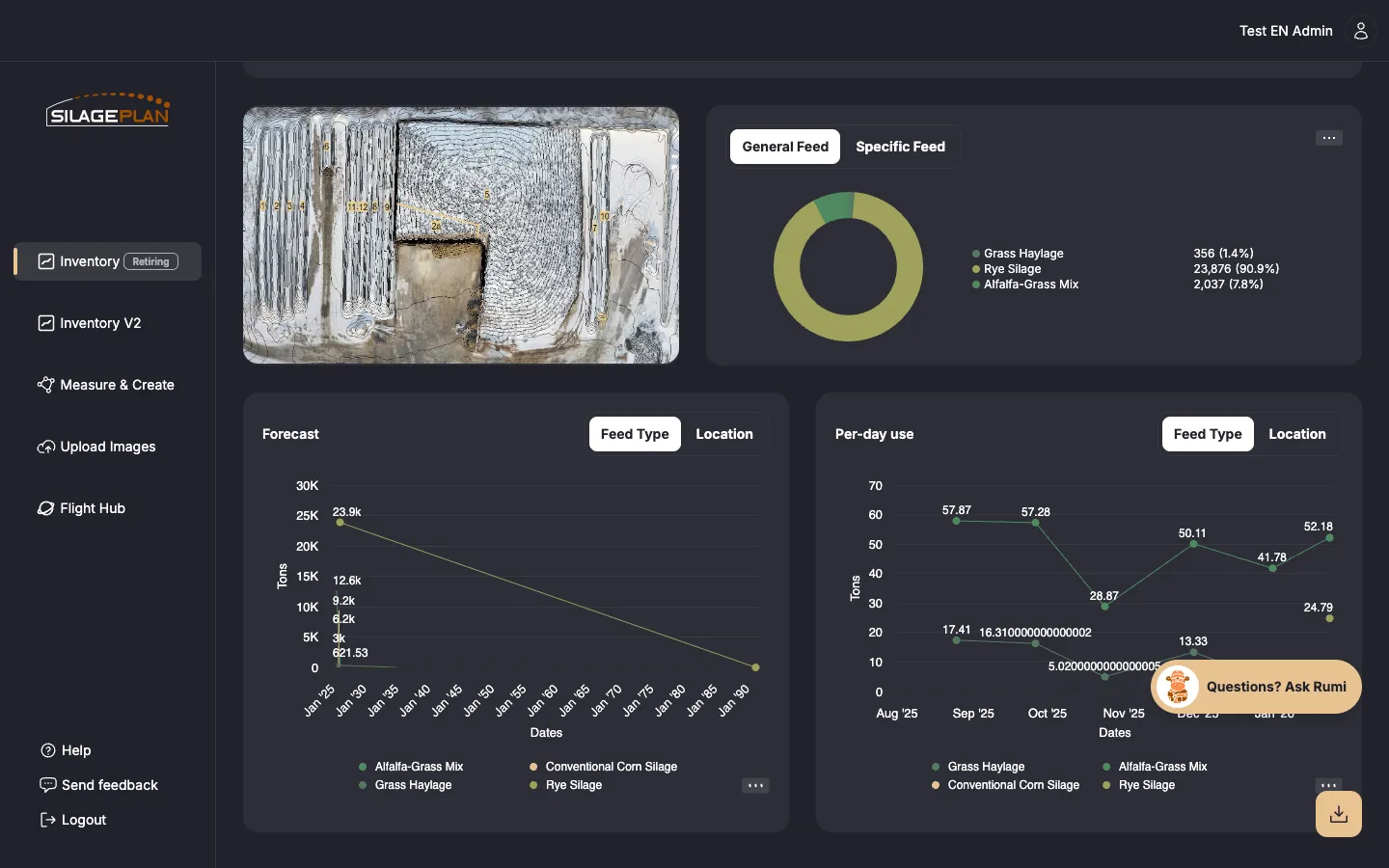
Consumption rate — tons fed per day — is the engine of every forecast. Tons remaining ÷ tons per day = days of feed left. This article covers the two places you control it: on the inventory record, and inside the custom forecast tool.
Set per-day use on the record
The simplest way to steer the forecast is on the record itself:
- Open the Inventory page and click the location you want to change (how to edit records).
- Under the Customize Forecast heading, enter the Used Tons Per Day — the number of tons of feed used per day from that location.
- Save. The auto forecast picks up the new rate and recalculates the runout dates.
In Inventory V2, per-day use is edited in the forecast tool (PDU) rather than in Feed Information.
Where SilagePlan can measure usage between flights, it also derives actual consumption from the volume change — so after a couple of flights, compare your entered rate against what the drone says you really fed. A consistent gap usually means shrink or an outdated ration assumption.
Edit rates in the custom forecast tool
For finer control — different rates over time, feeding order, planned pauses — switch the forecast to Custom mode (how modes work). In the Inventory V2 forecast tool, each location appears as a block on a timeline, and the built-in How to use guide describes the three editing actions:
- Drag and drop the rectangles to re-order the forecast — which location is fed first, second, and so on.
- Expand and contract rectangles to adjust usage — stretching a block over more days lowers its daily rate; compressing it raises the rate.
- Enter the per day use value in the text box for an exact number.
Clicking a block opens an edit dialog where you can adjust its Start Date, End Date, and per-day use (PDU). A location can also carry multiple Stages — periods with different rates — so you can model a ration change mid-pile, such as feeding 8 tons/day until a new group starts and 11 tons/day after.
Undo and redo controls are available while editing, and your changes save to the custom forecast without touching the auto forecast.
Blocks that aren’t active yet
Locations without any usage information appear as inactive placeholders in the custom tool. Edit the block — resize it or enter a per day use — to activate forecasting for that location.
Good practices
- Get rates from your feed software or nutritionist’s ration sheets rather than guessing, then let measured usage between flights confirm them.
- Revisit rates at herd-size or ration changes — a stale rate quietly shifts every runout date.
- After each new flight, check whether projected and measured usage agree; if not, adjust the rate or investigate shrink.
- If your custom plan no longer matches reality, use Reset to re-base it on the auto forecast and start clean.