
Note: These are the classic forecast tools. Inventory V2 shows days remaining and runout dates directly on its dashboard.
Forecasts project your feed inventory forward: how fast each feed is being used and when it will run out. SilagePlan offers two modes — an automatic forecast built from your data, and a custom forecast you can edit by hand.
Auto Forecast
Auto Forecast is generated automatically — you don’t have to build anything. It combines your measured inventory (tons per location from your flights) with consumption information (per-day use, either entered on your records or derived from the measured change between flights) to project each feed forward to its runout date.
The auto forecast updates as your data changes: a new flight, an edited density, or a changed per-day use all flow into the projection. If you see “No forecast” for a farm, it usually means there isn’t enough data yet — fly a second flight or create a custom forecast.
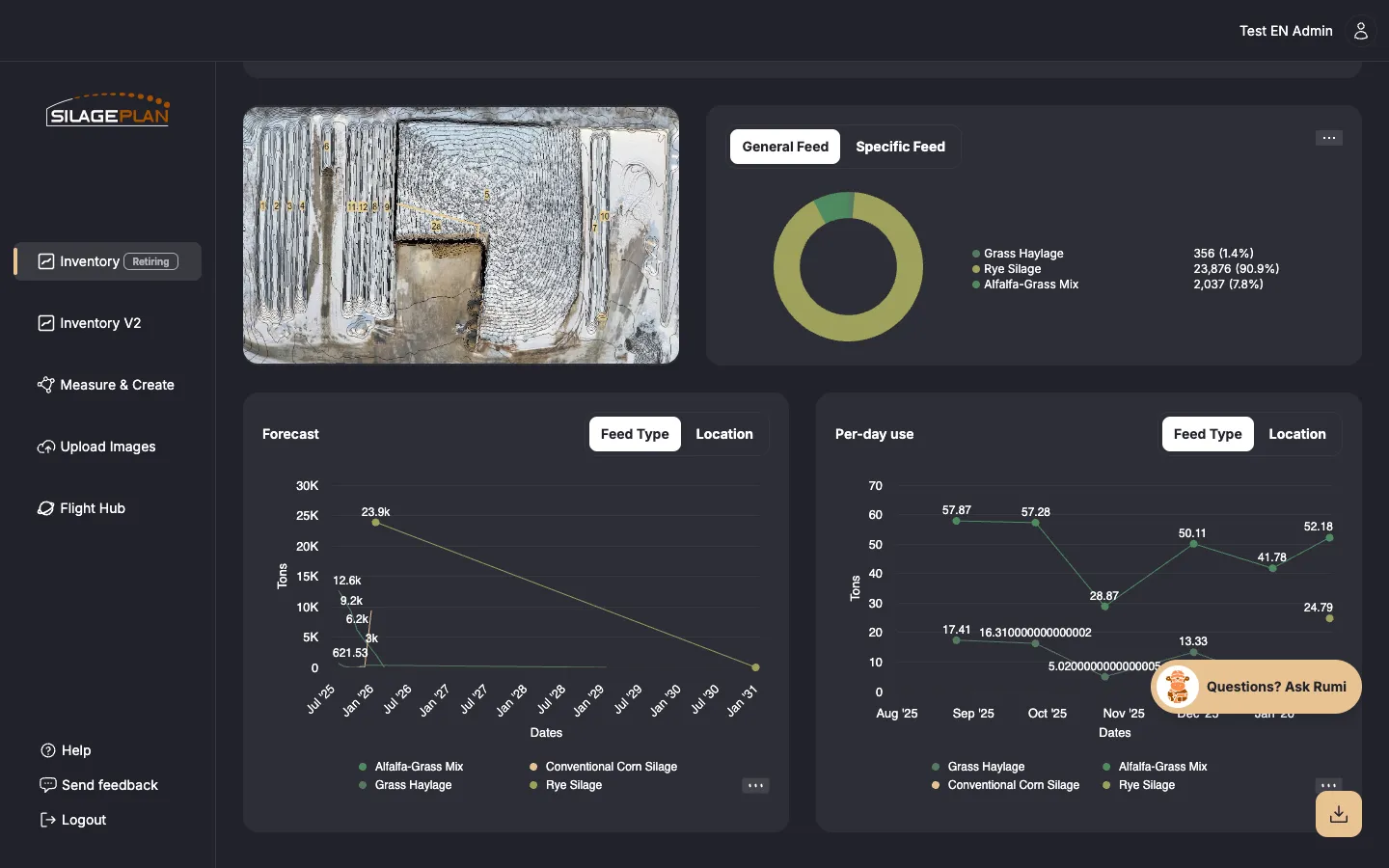
Custom Forecast
Custom Forecast lets you take over the plan. Use it when you know something the measurements don’t — a ration change coming next month, a pile you’ll open early, or a feed you want to stretch.
- Open the forecast section (on the classic Inventory page, switch the Auto Forecast / Custom Forecast toggle; in Inventory V2, choose Custom in the forecast tool).
- The first time you switch, SilagePlan copies the current auto forecast as your starting point — you edit from realistic values rather than a blank slate.
- Adjust the plan: reorder which locations feed first, change per-day use, and adjust dates. See Adjust consumption rates for the editing tools.
- Your changes save with the custom forecast and won’t be overwritten by the auto forecast.
The auto forecast keeps running in the background, so you can flip between the two modes to compare your plan against what the measurements alone would predict.
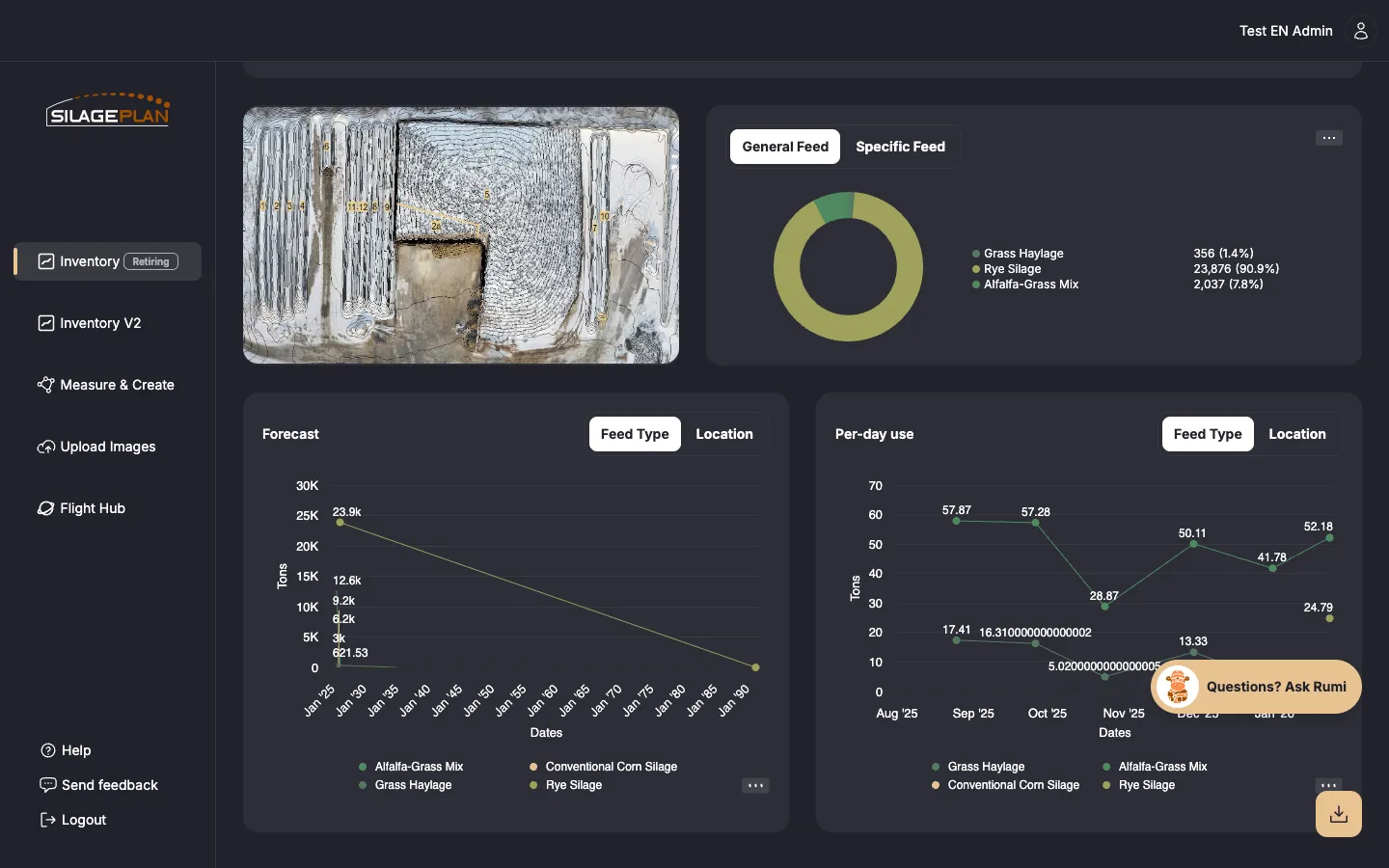
Forecast views: Feed Type and Animal Group
In the Inventory V2 forecast tool you can group the forecast three ways:
- Feed Type — one forecast line per feed type.
- Animal Group — usage grouped by the animal groups assigned on your records.
- Feed Type + Animal Group — both combined.
Animal group views require animal groups on your records — see Editing inventory records.
Resetting to auto
If your custom forecast has drifted from reality, use Reset in the forecast tool. Resetting overwrites your custom changes with the current auto forecast values — it clears your custom per-day use, forecast order, and used-tons entries — giving you a clean, measurement-based starting point. You’ll be asked to confirm before anything is overwritten.