
Flight Hub is the operations center for Enterprise accounts. It gives administrators one place to manage the team, control farm access, and keep flight coverage on schedule across every farm in the account.
Who can access Flight Hub
Flight Hub is an Enterprise plan feature and only appears in the sidebar for users with admin access. Granting a user admin access gives them Flight Hub for team management, user invitations, and role assignment — so it should be limited to people you fully trust. If you are on Enterprise and do not see Flight Hub in your sidebar, ask your account admin, or email [email protected].
Not sure which plan you are on? See the plans overview.
What’s in Flight Hub
User Management
Control Flight Hub access, invites, and farm permissions:
- Invite new user by email and assign their roles when you send the invite.
- Assign roles — an Inventory role (View Only, View Only (No Upload), Classic, Classic (No Upload), or Data Manager), an optional Measure & Create role (Classic or Power User), and optionally admin access.
- Track invite status — members show as Invite Pending until they accept, then Invite Accepted; you can resend an invite email if needed.
- Deactivate users — unchecking a user’s active status prevents login without deleting the account.
Full details on the role tiers are in Team roles and permissions.
Farm Access
Select a user to manage their farm-level permissions — which farms each team member can see and work with. This is how you scope a nutritionist to one client’s farms or a manager to a single location.
Upcoming Flights
A table of locations that need to be reflown soon, showing each Farm, Site, and the number of days since it was last flown, color-coded so overdue sites stand out. See Managing flights in Flight Hub.
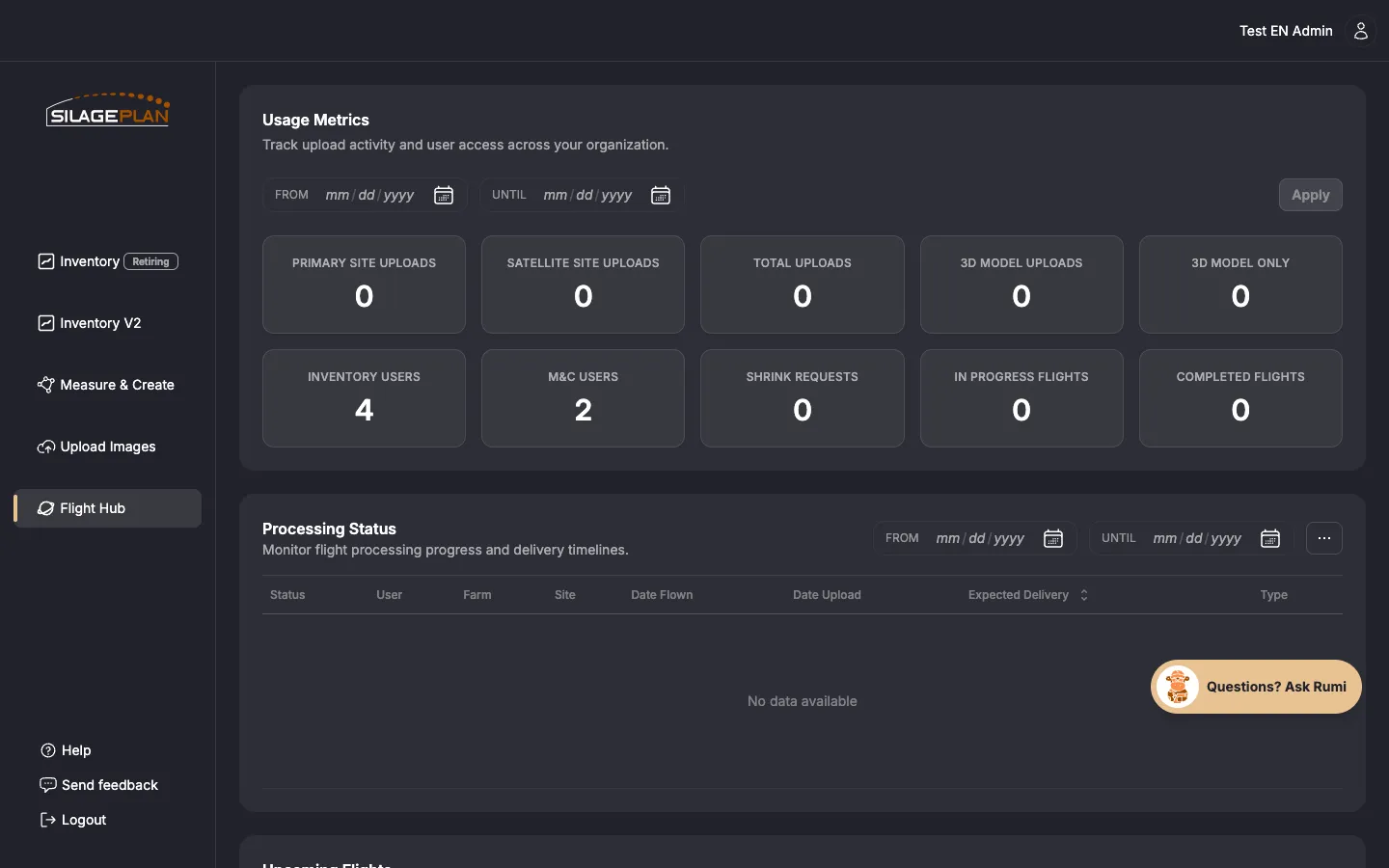
Usage Metrics
A summary of activity across your account. Active users count toward usage metrics, which also feed your monthly Enterprise invoice — see Managing billing and payments.
Processing Status
Track uploads working their way through processing, filterable by date range. For what happens after an upload and how long it takes, see Processing times.
Typical admin workflow
- Invite your team and assign roles in User Management.
- Scope each member’s farms in Farm Access.
- Check Upcoming Flights weekly and schedule reflights for anything trending late.
- Watch Processing Status after flight days to confirm uploads are moving.
For questions about setting up your Enterprise team, contact [email protected].