
For Enterprise accounts flying many farms, the hard part is not any single flight — it is making sure every site gets reflown on time. Flight Hub gives admins the account-wide view to stay ahead of that.
The Upcoming Flights table
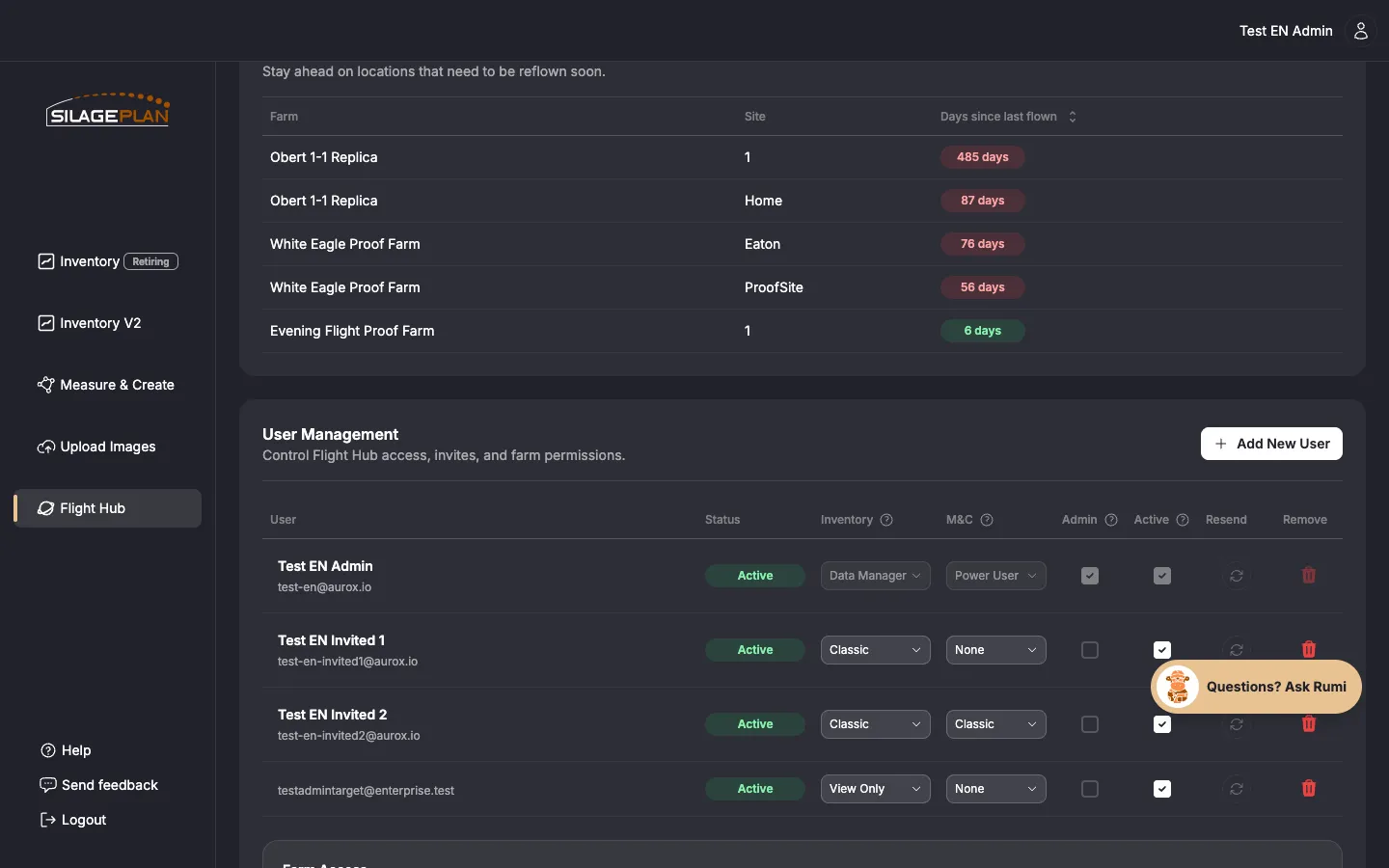
The Upcoming Flights section lists locations that need to be reflown soon. Each row shows:
- Farm — the farm the site belongs to.
- Site — the storage site that was flown.
- Days since last flown — a color-coded badge counting days since that site’s most recent flight:
- Green — flown within roughly the last 25 days; you’re on schedule.
- Amber — 26–50 days since the last flight; plan a reflight.
- Red — more than 50 days; inventory and forecasts for this site are running on stale data.
Sort by days since last flown to build your reflight priority list. Regular reflights are what keep runout dates and shrink tracking trustworthy — the model can only be as current as the last flight.
A practical reflight cadence
Most operations aim for roughly a monthly cycle per active site:
- Review Upcoming Flights at the start of each week.
- Batch nearby amber/red sites into one flying day.
- Follow flight best practices in the field and upload the same day if you can.
- Confirm the upload appears under Processing Status.
Monitoring processing
The Processing Status section tracks uploads moving through processing, with From and Until date filters to narrow the view — useful after a big flying day to confirm every site’s upload made it in. Typical turnaround is covered in Processing times; if an upload looks stuck, see Troubleshooting uploads.
Flight records and dates
A flight in SilagePlan represents one drone visit to a site on a given date, and each site can have only one flight per date. Flight records are created when your uploads are processed, and all inventory records from that visit hang off the flight.
If a flight was logged with the wrong date, the date can be edited — keep in mind that changing the date updates all records associated with that flight, so runout math and shrink comparisons shift with it. Deleting flights or farms removes access to the associated location data, so treat deletions carefully; users need the Data Manager inventory role to create or delete farms, sites, and flights (see Team roles and permissions).
Who does what
- Flight Hub admins watch coverage, assign farm access, and chase overdue sites — see the Flight Hub overview.
- Pilots/uploaders need at least the Inventory View Only role, which allows image uploads. (The View Only (No Upload) and Classic (No Upload) roles deliberately exclude uploads — see Team roles and permissions.)
Questions about coordinating flights across a large operation? Email [email protected].