
Most editing in Inventory V2 happens in the Feed Information table. Open it with the Edit Feed Info button, and each measured location — piles, bags, and bunkers — becomes an editable row. (Measure & Create locations and manually added locations appear when their M&C / Added Locations toggles are on.)
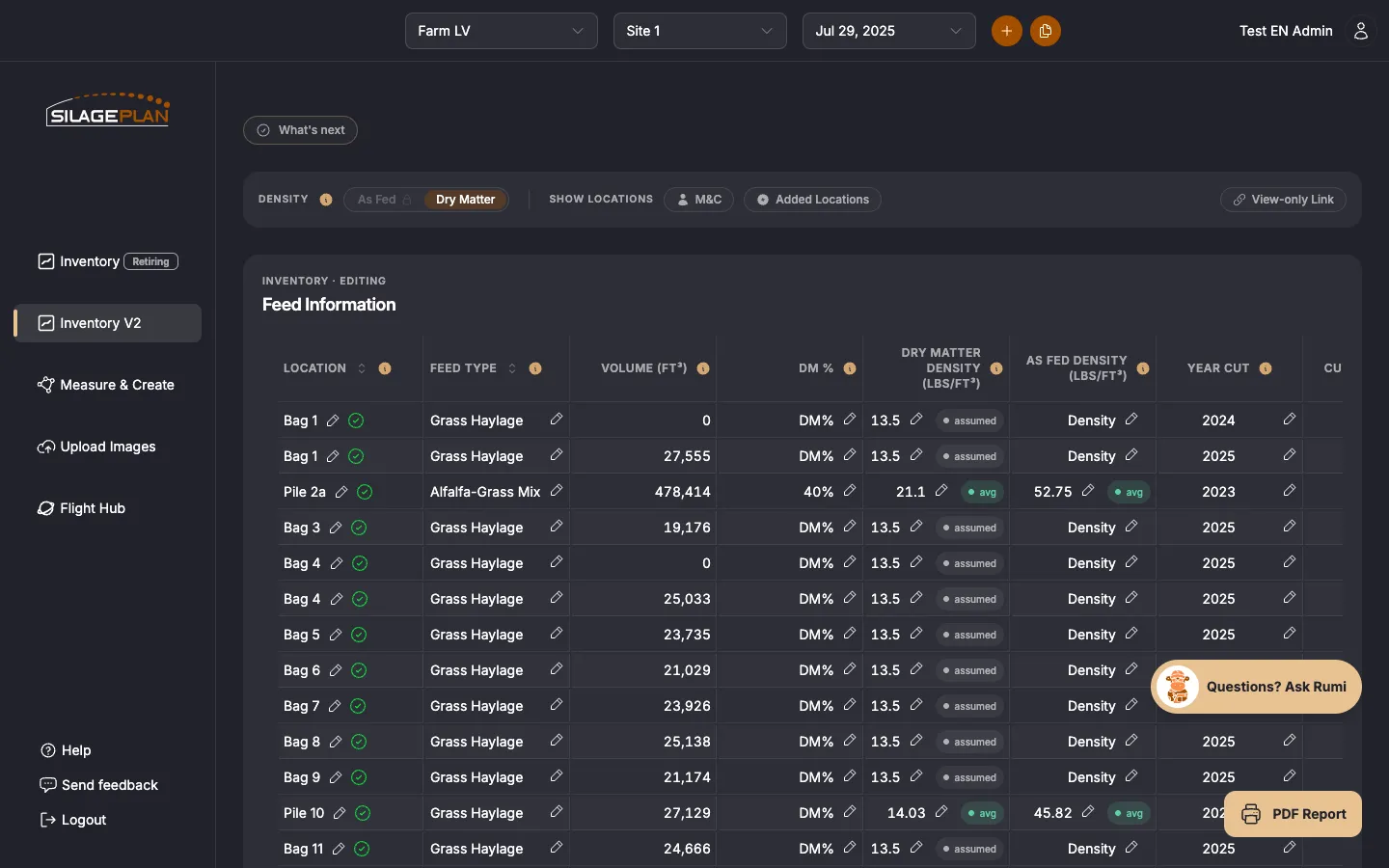
The editing table
Each row shows the location with its measured and entered values. Click a cell to edit it directly — changes autosave, with a per-row saving/saved indicator:
- Location — rename the pile, bag, or bunker (this one opens via its pencil icon). A green check marks locations whose required details are complete.
- Feed Type — the forage in this location. Feed types drive how inventory is grouped everywhere else, so keep them consistent.
- Volume — the drone-measured volume for the selected flight date.
- DM % — dry-matter percentage for this feed.
- Dry Matter Density / As Fed Density — density values used to turn volume into tons. Value badges show where each number comes from: override (a value you entered), avg (calculated from your own data), calc (calculated from this flight), or assumed (a standard starting value). Entering your own measured density gives the most accurate tonnage — see Working with silage density.
- Year Cut, Cut Number, and Feed Code — harvest year, harvest sequence, and your own feed code or name.
- Cows Fed and Animal Group — these drive the cost-per-cow card and the animal-group forecast views. (Feeding rates themselves are measured from inventory changes between flights, so these fields don’t change the runout projections.)
Required information
The banner above the table tells you when “All required information has been entered”. Locations missing required details are flagged in red so you can see at a glance what still needs attention — a location needs at least its Location name, Feed Type, Year Cut, and a density before its tons are meaningful.
Tips
- Edits save to the same records as the classic Inventory page, so both pages always agree.
- Fixing the Feed Type on a misclassified location immediately moves its tons into the right totals and forecasts.
- The Density toggle above the dashboard controls whether the page displays as-fed or dry-matter values — it doesn’t change your data, only the view. A basis stays locked until every location has a density on that basis.
- Use Add Location to add a feed location that wasn’t captured by the drone; the trash icon appears only on rows you created yourself.