
Getting into SilagePlan takes just a few minutes: register with your email, confirm it, and log in. This article walks through each step.
Create an account
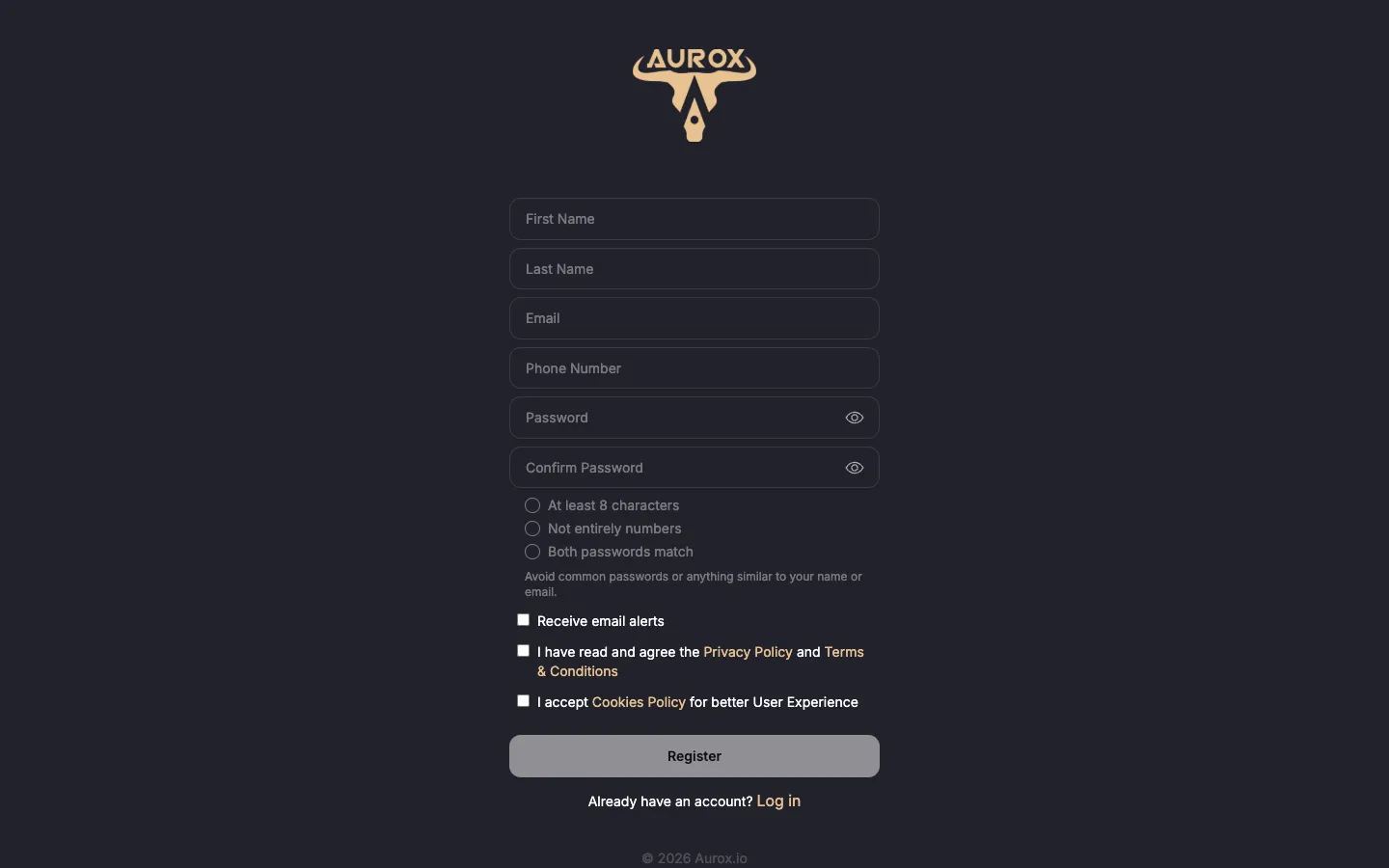
- Go to app.silageplan.com and click Register Here on the login page.
- Fill in your details: First Name, Last Name, Email, Phone Number, and a Password (with a Confirm Password field). The password must be at least 8 characters and can’t be entirely numbers — the form shows a live checklist and the Register button stays disabled until the rules are met.
- Accept all three policies — the Privacy Policy, the Terms & Conditions, and the Cookies Policy. All three checkboxes are required.
- Submit the form. You’ll see a confirmation that says “Thanks for signing up!” and asks you to check your email inbox.
- Check your email inbox and click the verification link to complete registration. If the email doesn’t arrive within a few minutes, check your spam folder, or use the Send another email option on the confirmation screen.
If you were invited to SilagePlan by a teammate on an Enterprise account, follow the link in your invitation email instead — your account is already connected to your team. See Team roles for what your assigned role can do.
Log in
- Go to app.silageplan.com.
- Enter your Email and Password.
- Click Log in. (There is also a Keep me logged in checkbox on the form.)
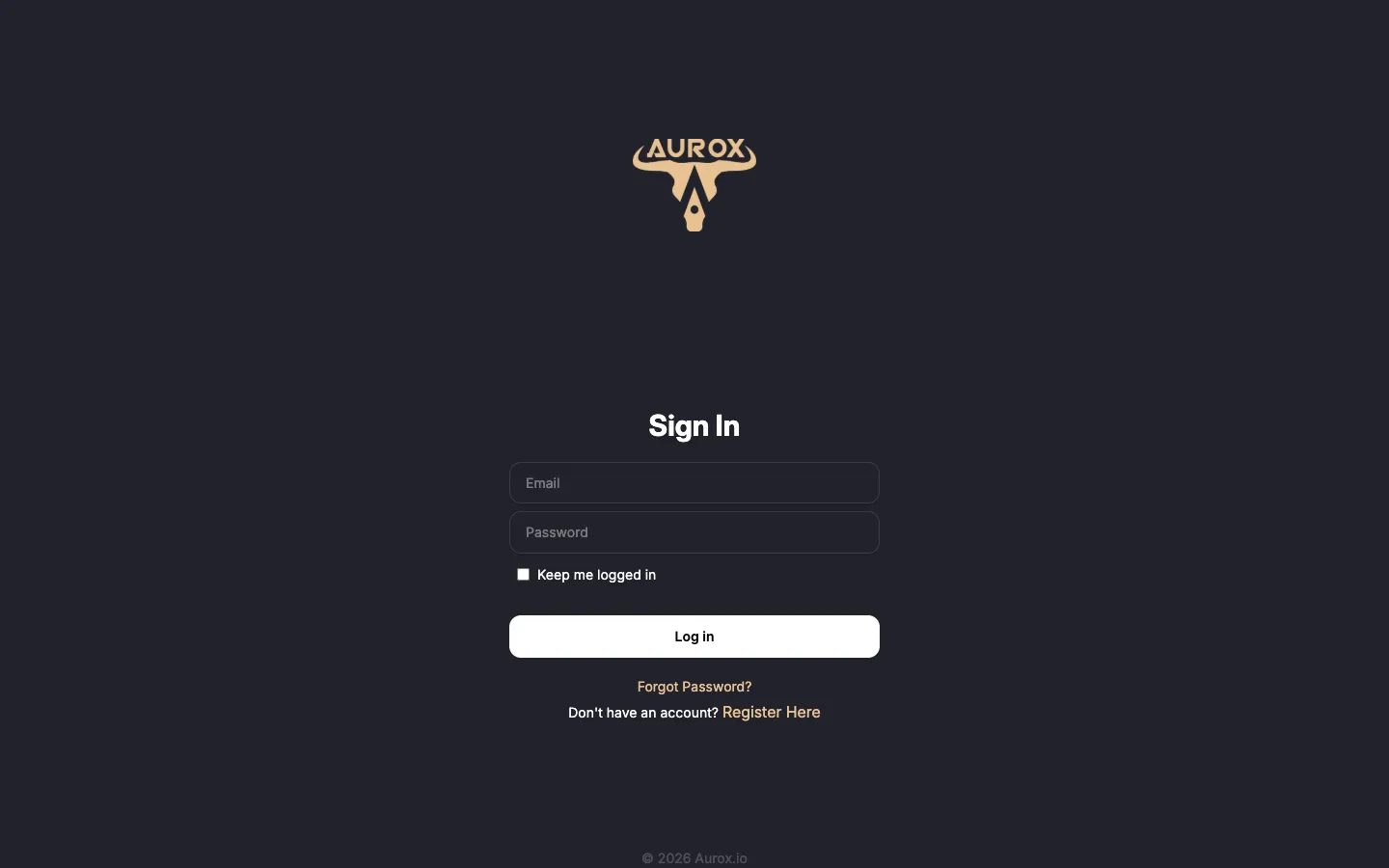
If your account doesn’t have a plan yet, you’ll be taken to the plan-selection page first; otherwise you land on the Inventory V2 dashboard. Take the dashboard tour to get oriented.
Forgot your password?
- On the login page, click Forgot Password?.
- Enter the email address you registered with.
- You’ll get a message confirming a password reset email was sent — open it and follow the link to set a new password.
- Return to the login page and sign in with your new password.
If the reset email never arrives, double-check you entered the same email address you registered with, and look in your spam folder.
Changing your password later
Once logged in, you can change your password anytime from your account settings: open the user menu in the top-right corner, choose Settings, and use the Change Password section. See Profile and settings for everything else you can manage there, including language, units, and email alerts.
Choosing a plan
New self-registered accounts see a plan-selection page with two options: the 2.5D Map & Inventory Platform subscription (monthly or annual) and a Have Drone Data? card that connects you with our sales team for drone processing (Enterprise). Pay-Per-Upload accounts are set up by support rather than self-serve. You can manage your subscription from the Settings page — see Plans overview.