
This guide takes you from an empty account to real inventory numbers. Each step links to a detailed article if you want more depth.
Step 1: Create your account
Register at app.silageplan.com, verify your email, and log in. Full instructions: Create your account and log in.
Step 2: Fly your drone
Use any pro-sumer drone with a good camera and GPS — DJI Mavic, Phantom, or Air series, or Autel Evo series all work. Fly over your silage piles, bunks, and bags and capture overlapping photos.
The two articles to read before your first flight:
- Drone and camera requirements — what hardware works and what improves accuracy
- Flight best practices — altitude, overlap, and coverage tips that make the difference between a good model and a re-fly
Step 3: Upload your images
- Log in and click Upload flight images on the dashboard (or Upload Images in the sidebar). Drone uploads require a Pay-Per-Upload or Enterprise plan.
- Add your drone photos (JPG format) to the image upload area, then enter the Farm Name and Date Flown (the Site Name is optional).
- Choose what to process — Standard inventory, or add a Measure & Create 3D model.
- Keep the browser window open until every image finishes uploading, then click Submit flight. Pay-Per-Upload customers click Pay $X & Upload and pay for the flight at this step.
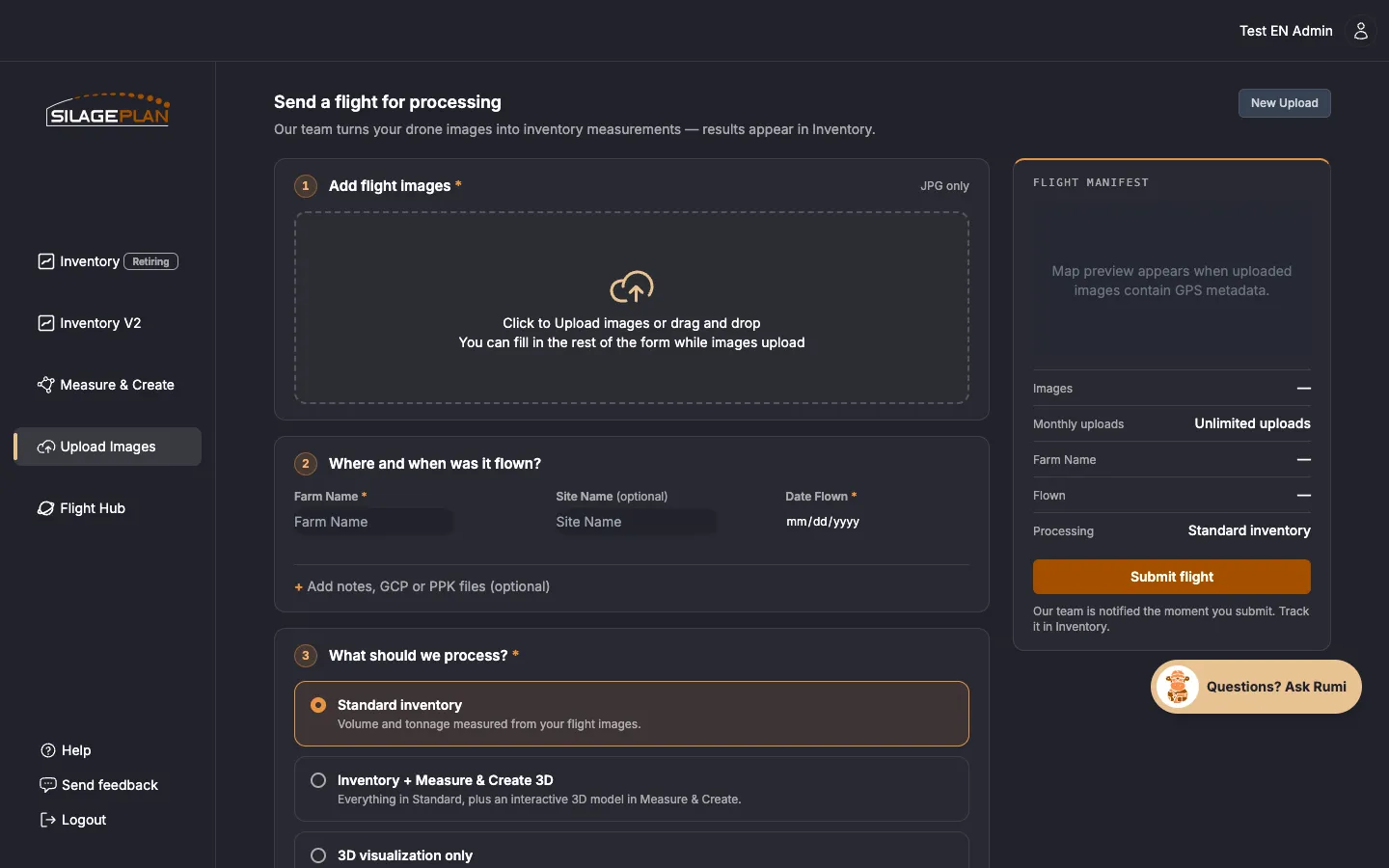
Full walkthrough: Upload a drone flight. If anything goes wrong, see Troubleshoot uploads.
Step 4: Wait for processing
Our photogrammetry pipeline turns your photos into a 3D model and measures every pile’s volume. Turnaround varies with photo set size and queue volume; your results appear in your account once processing completes. Details: Processing times.
Step 5: Review your inventory
Once processing is done:
- Open Inventory (or Inventory V2) from the sidebar.
- Select your Farm, Site, and Date in the filters.
- You’ll see each measured location — every pile, bunk, and bag — with its volume and estimated tons.
New locations will ask for missing feed information (feed type, dry matter, density) so tonnage can be calculated accurately. See Edit inventory records and Silage density for how those numbers work.
Step 6: Forecast your feed-out
With inventory in place, set your daily usage to project when each feed runs out:
Keep it going
Fly again every few weeks or after major feed-out milestones. Repeat flights let SilagePlan measure actual usage, refine densities, and track shrink over the season.