
When you log in to SilagePlan you land on the Inventory V2 dashboard. This article walks you through what’s on screen and where each part of the app lives.
Quick Actions
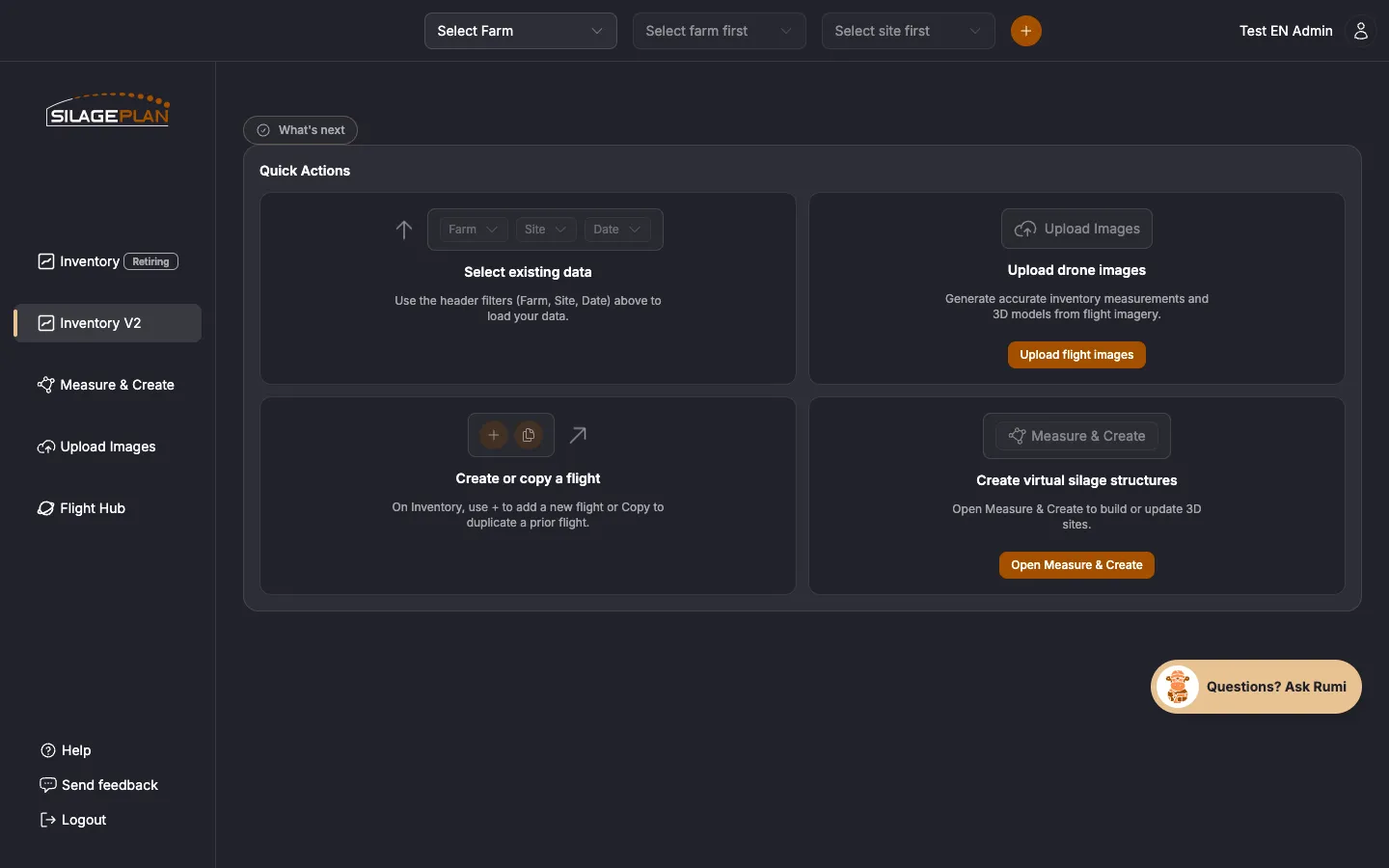
The dashboard greets you with Quick Actions cards — shortcuts to the most common tasks:
- Select existing data — view inventory from flights that have already been processed. Use the Farm, Site, and Date filters in the header to pick which flight you’re looking at.
- Upload drone images — click Upload flight images to go to the upload page and submit a new flight. See Upload a drone flight.
- Create or copy a flight — set up a new flight entry manually, or copy an existing one.
- Create virtual silage structures — open the Measure & Create tools to draw and measure piles and bunks on a map or 3D model. See the Measure & Create overview.
The sidebar
The navigation sidebar on the left takes you to each area of the app:
- Inventory — the classic inventory view with your feed records, densities, values, and forecasts. It is being phased out, so the sidebar marks it Retiring. See The classic Inventory page.
- Inventory V2 — the recommended inventory experience, and the page you land on after login. See the Inventory V2 overview.
- Measure & Create — measure volumes on 3D models and create custom structures. See Measure volumes.
- Upload Images — submit drone flight photos for processing (Pay-Per-Upload and Enterprise plans; hidden for roles without upload access).
- Flight Hub — Enterprise only: manage your team, invitations, and roles. See the Flight Hub overview.
- Logout — sign out of your account.
Picking a farm, site, and date
Almost everything in SilagePlan is organized by Farm → Site → Date Flown. A farm can have multiple sites (for example, a home farm and a heifer facility), and each site accumulates flights over time. Use the filters at the top of the inventory pages to select which flight’s data you’re viewing. Selecting an older date lets you look back at how your inventory has changed.
Your account settings
Click the person icon in the top-right corner (your name appears next to it on desktop) to open the user menu, then choose Settings. From the Settings page you can:
- Edit your Profile Details — name, phone, email, Language (English/Español), Unit Type (Imperial/Metric), and the Receive email alerts checkbox
- Change your password
- Manage your subscription and view Payment History (shown depending on your plan)
- Download your data or delete your account
See Profile and settings for details, and Manage billing for subscription questions.
Next step
Ready to get real numbers on screen? Follow the quick start guide to go from a drone flight to inventory totals.